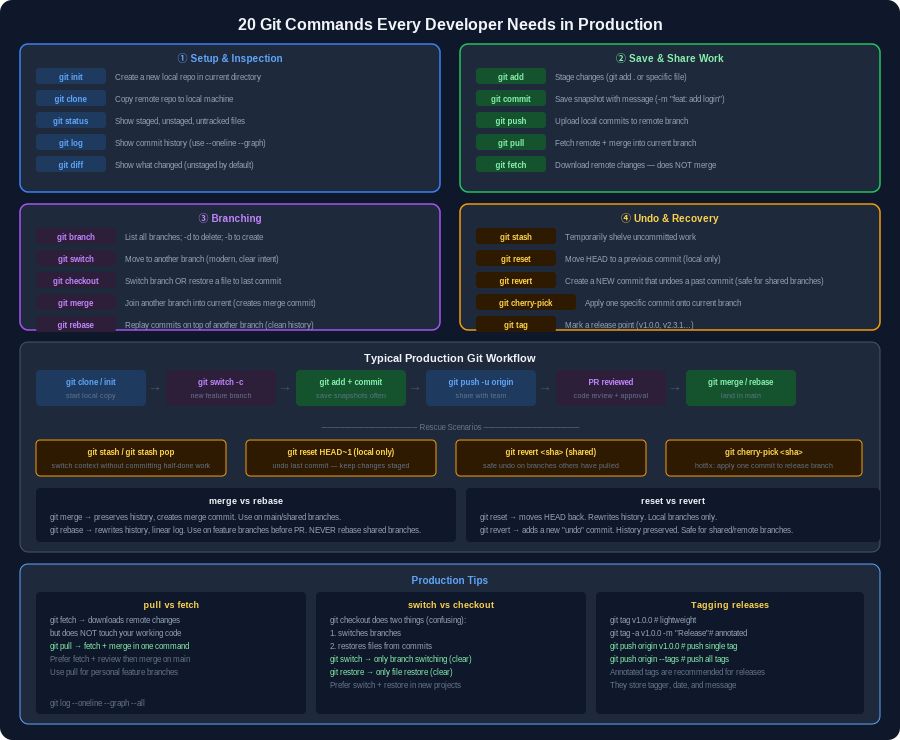
Knowing Git commands is not enough — knowing when and why to use each one is what separates developers who struggle with version control from those who move confidently. This post covers all 20 commands with practical examples grounded in real project workflows.
① Setup & Inspection
git init
Creates a new empty repository in the current directory.
mkdir my-project && cd my-project
git init
# Initialized empty Git repository in ./my-project/.git/
Use this when starting a brand new project locally. For existing remote projects, use git clone instead.
git clone
Downloads a full copy of a remote repository — all commits, all branches, all history.
git clone https://github.com/user/repo.git
git clone https://github.com/user/repo.git my-folder   # clone into custom folder
git clone --depth 1 https://github.com/user/repo.git   # shallow clone (latest commit only)
--depth 1 is useful for CI pipelines where you only need the latest code, not the full history.
git status
Shows the current state of your working directory and staging area.
git status
# On branch feature/login
# Changes staged for commit:
#   modified: src/LoginActivity.kt
# Untracked files:
#   src/AuthToken.kt
Run this before every add or commit. It prevents accidentally committing unintended files.
git log
Shows the commit history. The default view is verbose — use flags to make it readable.
git log --oneline --graph --all
# * a3f2c1b (HEAD -> feature/login) feat: add token refresh
# * 9e1d4a0 feat: add login screen
# * e7b2f3c (main) fix: null pointer on startup
--oneline compresses each commit to one line. --graph draws the branch tree. --all shows all branches, not just the current one.
git diff
Shows what changed but has not been staged yet.
git diff                        # unstaged changes
git diff --staged               # staged changes (what will go into the next commit)
git diff main..feature/login    # compare two branches
Always run git diff --staged before committing to verify exactly what you are about to save.
② Save & Share Work
git add
Moves changes into the staging area. Only staged changes are included in the next commit.
git add src/LoginActivity.kt        # stage one file
git add src/                        # stage all changes in a folder
git add .                           # stage everything (use carefully)
git add -p                          # interactively choose which hunks to stage
git add -p is powerful for production — it lets you commit one logical change at a time even if your working file contains multiple unrelated edits.
git commit
Saves the staged snapshot permanently into the repository history.
git commit -m "feat: add OAuth 2.0 login flow"
git commit -m "fix: crash when token is null on cold start"
git commit --amend                  # edit the last commit message (before push only)
Use a consistent message format. A common convention is type: description — e.g., feat:, fix:, refactor:, docs:. This makes git log scannable.
git push
Uploads your local commits to the remote repository.
git push origin feature/login           # push a branch for the first time
git push -u origin feature/login        # set upstream so future `git push` works without args
git push origin --delete old-branch     # delete a remote branch
Never force-push to main or develop on a shared repository. Force-push rewrites history that teammates have already pulled.
git pull
Fetches the latest changes from the remote and merges them into your current branch.
git pull                        # fetch + merge (same as git fetch && git merge)
git pull --rebase               # fetch + rebase instead of merge (cleaner history)
git pull --rebase is preferred for personal feature branches — it avoids creating unnecessary merge commits when syncing with the remote.
git fetch
Downloads remote changes without touching your working code or current branch.
git fetch origin                        # download all remote branches
git fetch origin main                   # download only main
git log HEAD..origin/main --oneline     # see what's new on remote main before merging
Use fetch before merging or rebasing onto main in production — inspect what changed first, then decide.
③ Branching
git branch
Lists, creates, and deletes branches.
git branch                          # list local branches
git branch -a                       # list all (local + remote)
git branch feature/payments         # create a new branch (stays on current)
git branch -d feature/payments      # delete merged branch
git branch -D feature/payments      # force delete (even if not merged)
git switch
Moves to a different branch. Introduced in Git 2.23 as a clearer alternative to git checkout.
git switch main                     # move to main
git switch -c feature/dark-mode     # create AND switch in one command
git switch -                        # go back to the previous branch
Prefer git switch for branch switching in new projects — it has a single, unambiguous purpose.
git checkout
The older command that both switches branches and restores files. It still works, but its dual purpose makes it error-prone.
git checkout feature/login          # switch to branch
git checkout -b feature/login       # create and switch
git checkout -- src/LoginActivity.kt  # discard changes in a file (restore to last commit)
For file restoration, git restore src/LoginActivity.kt is the modern equivalent.
git merge
Combines another branch’s history into the current branch.
git switch main
git merge feature/login             # brings feature/login into main
git merge --no-ff feature/login     # always create a merge commit (preserves branch context)
git merge --abort                   # abort if conflicts arise
--no-ff (no fast-forward) keeps the branch topology visible in the history. Even if a fast-forward is possible, a merge commit documents that a feature branch was merged.
git rebase
Replays your commits on top of another branch’s latest commit, creating a linear history.
git switch feature/login
git rebase main              # replay feature commits on top of latest main
git rebase -i HEAD~3         # interactive: squash, reword, or drop the last 3 commits
Golden rule: never rebase commits that have already been pushed and shared with others. Rebasing rewrites commit hashes — teammates who have the old hashes will face conflicts.
| merge | rebase | |
|---|---|---|
| History | Preserves branch topology | Linear — no merge commits |
| Use on | main after PR approval | Local feature branches |
| Safe for shared branches? | ✅ Yes | ❌ No |
④ Undo & Recovery
git stash
Temporarily saves uncommitted work so you can switch context without committing half-done code.
git stash                           # save current changes
git stash push -m "WIP: login form" # save with a label
git stash list                      # see all stashed entries
git stash pop                       # restore the most recent stash and remove it
git stash apply stash@{1}           # restore a specific stash, keep it in the list
git stash drop stash@{1}            # delete a stash entry
Production scenario: You are halfway through a feature when a critical bug is reported on main. Stash your work, switch to main, fix the bug, push, then switch back and stash pop.
git reset
Moves HEAD (and optionally the index/working tree) to a previous commit.
git reset HEAD~1            # undo last commit — keep changes staged (--soft is default)
git reset --mixed HEAD~1    # undo last commit — keep changes unstaged (default)
git reset --hard HEAD~1     # undo last commit — DISCARD changes permanently
Use only on commits that have NOT been pushed. If you reset a commit that teammates have already pulled, you will create diverged histories.
git revert
Creates a new commit that undoes the changes of a specific past commit. The original commit remains in history.
git revert a3f2c1b            # create an "undo" commit for that SHA
git revert HEAD               # revert the very last commit
git revert HEAD~3..HEAD       # revert the last 3 commits
This is the safe way to undo on shared branches. Because it adds a new commit rather than rewriting history, teammates who have already pulled the original commit are not affected.
| reset | revert | |
|---|---|---|
| Method | Moves HEAD back | Adds new “undo” commit |
| Rewrites history? | Yes | No |
| Safe for pushed commits? | ❌ No | ✅ Yes |
git cherry-pick
Applies the changes from one specific commit onto the current branch — regardless of which branch it came from.
git cherry-pick a3f2c1b             # apply one commit
git cherry-pick a3f2c1b..e7b2f3c   # apply a range of commits
git cherry-pick a3f2c1b --no-commit # apply changes without committing (review first)
Production scenario: A critical security fix was committed to feature/auth. The release branch needs that fix immediately, without taking the entire unfinished feature. Cherry-pick the specific fix commit onto the release branch.
git tag
Marks a specific commit as a release point.
git tag v1.0.0                        # lightweight tag (just a pointer)
git tag -a v1.0.0 -m "First release"  # annotated tag (stores author, date, message)
git tag                               # list all tags
git push origin v1.0.0                # push one tag to remote
git push origin --tags                # push all tags
git tag -d v1.0.0                     # delete a local tag
git push origin --delete v1.0.0       # delete a remote tag
Use annotated tags for releases — they store the tagger’s name, date, and a message, making them a permanent part of the project record. Lightweight tags are for temporary local bookmarks.
Production Workflow Summary
# Start a feature
git switch main && git pull
git switch -c feature/user-profile

# Work in small commits
git add -p
git commit -m "feat: add profile screen layout"
git commit -m "feat: wire ViewModel to profile UI"

# Keep up with main
git fetch origin
git rebase origin/main

# Push and open PR
git push -u origin feature/user-profile

# After PR is approved — merge on GitHub/GitLab
# Locally clean up
git switch main && git pull
git branch -d feature/user-profile
The pattern: small commits, frequent rebases onto main, PRs before merging, tags for releases.