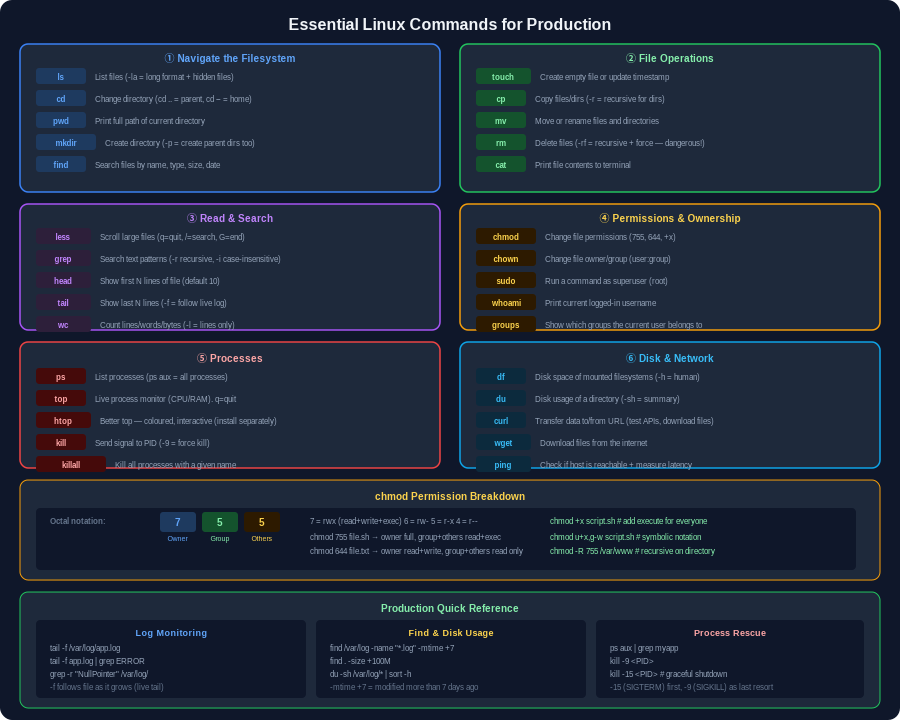
Linux is the operating system running behind almost every production server, CI runner, and Docker container. Knowing these commands fluently means you spend less time searching documentation and more time solving actual problems. This guide covers every command with real examples grounded in day-to-day development and production work.
① Navigate the Filesystem
ls — List files and directories
ls                      # list files in current directory
ls -l                   # long format: permissions, owner, size, date
ls -la                  # long format including hidden files (starting with .)
ls -lh                  # human-readable sizes (KB, MB, GB)
ls /var/log             # list a specific directory
In production, ls -lh /var/log/ quickly shows which log files are growing large.
cd — Change directory
cd /var/log             # go to an absolute path
cd my-project           # go into a subdirectory (relative)
cd ..                   # go up one level to parent directory
cd ~                    # go to your home directory
cd -                    # go back to the previous directory
cd - is useful when switching between two directories repeatedly — it toggles between them.
pwd — Print working directory
pwd
# /home/murtuza/my-project
When you are deep inside a nested directory and need to know the full path — for copying into a script or sharing with a teammate — pwd gives you the exact location.
mkdir — Create directories
mkdir logs                          # create a single directory
mkdir -p /var/app/logs/archive      # create directory and all missing parents
mkdir -p src/{models,views,utils}   # create multiple directories at once with brace expansion
-p (parents) is the safe option: it creates any intermediate directories that do not exist yet and does not error if the directory already exists.
find — Search for files and directories
find . -name "*.log"                    # find all .log files from current directory down
find /var/log -name "error.log"         # find a specific file by name
find . -type d -name "build"            # find only directories named build
find . -size +100M                      # find files larger than 100 MB
find /var/log -name "*.log" -mtime +7   # files modified more than 7 days ago
find . -name "*.kt" -newer build.gradle # files newer than build.gradle
find is indispensable for locating old log files before running cleanup:
find /var/log -name "*.log" -mtime +30 -exec rm {} \;
# Delete all .log files older than 30 days
② File Operations
touch — Create files or update timestamps
touch config.yaml           # create an empty file
touch -m file.txt           # update the modification timestamp without changing content
touch file1.txt file2.txt   # create multiple files
touch is commonly used in deployment scripts to create placeholder config files before writing their contents.
cp — Copy files and directories
cp app.log app.log.bak              # copy a file
cp -r /var/www /var/www-backup      # copy a directory recursively
cp -rp /var/www /var/www-backup     # copy and preserve permissions/timestamps
cp *.conf /etc/myapp/               # copy all .conf files to a directory
-p (preserve) is important when copying configuration files — it keeps the original owner and permissions intact.
mv — Move or rename files
mv old-name.txt new-name.txt        # rename a file
mv app.log /archive/2026-10/        # move to a different directory
mv *.log /var/archive/              # move all .log files
mv config.yaml config.yaml.bak      # rename as backup before editing
There is no separate rename command in Linux. mv handles both moving and renaming.
rm — Remove files and directories
rm file.txt                 # delete a single file (prompts nothing)
rm -i file.txt              # interactive — asks for confirmation before deleting
rm *.tmp                    # delete all .tmp files
rm -r old-directory/        # delete a directory and all its contents recursively
rm -rf /tmp/old-build/      # force delete without prompts (use with extreme care)
rm -rf is one of the most dangerous commands in Linux. There is no trash — files are gone immediately. Always double-check the path before running it.
cat — Print file contents
cat config.yaml             # print the entire file
cat file1.txt file2.txt     # concatenate and print two files
cat > new-file.txt          # create a file and type content (Ctrl+D to save)
cat >> existing.txt         # append to an existing file (Ctrl+D to save)
For large files, cat is not ideal because it floods the terminal. Use less instead.
③ Read & Search
less — Read large files page by page
less /var/log/syslog # open file in a scrollable viewerNavigation inside less:
Spaceorf— scroll down one pageb— scroll up one pageG— jump to end of fileg— jump to beginning of file/pattern— search forward for a patternn— jump to next search matchq— quit
less is the right tool for reading log files that are thousands of lines long. Unlike cat, it does not load the entire file into memory.
grep — Search text using patterns
grep "ERROR" app.log                        # find lines containing ERROR
grep -i "error" app.log                     # case-insensitive search
grep -r "NullPointerException" /var/log/    # recursive search across a directory
grep -n "ERROR" app.log                     # show line numbers with matches
grep -v "DEBUG" app.log                     # show lines that do NOT match
grep -c "ERROR" app.log                     # count the number of matching lines
grep "ERROR\|WARN" app.log                  # match multiple patterns
grep combined with other tools is extremely powerful:
tail -f app.log | grep "ERROR"              # live-follow a log and show only errors
ps aux | grep java                          # find all running Java processes
cat access.log | grep "POST" | grep " 500 " # find failed POST requests
head — Show the first lines of a file
head app.log            # show first 10 lines (default)
head -n 50 app.log      # show first 50 lines
head -n 1 *.csv         # show the first line (headers) of every .csv file
tail — Show the last lines of a file
tail app.log            # show last 10 lines
tail -n 100 app.log     # show last 100 lines
tail -f app.log         # follow the file as new lines are written (live log)
tail -f app.log | grep ERROR    # live-follow and filter
tail -f is the standard way to watch application logs in production. It keeps the terminal open and prints each new line as it is appended to the file.
wc — Count lines, words, or bytes
wc -l app.log           # count lines
wc -w document.txt      # count words
wc -c binary.bin        # count bytes
ls -1 /var/log/ | wc -l # count how many files are in a directory
④ Permissions & Ownership
chmod — Change file permissions
Linux permissions have three classes — owner, group, others — and three permission types per class — read (r=4), write (w=2), execute (x=1).
chmod 755 script.sh     # owner: rwx, group: r-x, others: r-x
chmod 644 config.yaml   # owner: rw-, group: r--, others: r--
chmod 600 .env          # owner: rw-, group: ---, others: --- (private file)
chmod +x deploy.sh      # add execute for everyone (symbolic notation)
chmod u+x deploy.sh     # add execute for owner only
chmod g-w file.txt      # remove write from group
chmod -R 755 /var/www/  # apply recursively to a directory
Common permission values for production:
- 755 — scripts and directories (owner can write, everyone can read and run)
- 644 — regular config files and HTML (owner can write, everyone can read)
- 600 — secret files like
.envand private keys (only owner can read/write) - 777 — everyone full access (almost always wrong — avoid in production)
chown — Change file owner and group
chown alice file.txt                # change owner to alice
chown alice:developers file.txt     # change owner AND group
chown -R www-data:www-data /var/www # recursively set owner for a web server directory
chown :developers config.yaml       # change only the group, keep the owner
chown typically requires sudo. In production, web servers like Nginx or Apache run as a dedicated user (www-data, nginx) and need to own the files they serve.
sudo — Run as superuser
sudo apt update                     # run with root privileges
sudo chmod 755 /etc/myapp           # change permissions on a system directory
sudo -u www-data ls /var/www        # run as a different user
sudo -i                             # open a root shell (use sparingly)
Never run your application as root. Use sudo only for specific system administration tasks.
whoami and groups
whoami          # print the current username
groups          # print all groups the current user belongs to
id              # print UID, GID, and all group memberships
Useful when debugging permission issues — verifying which user and groups the current process runs under.
⑤ Processes
ps — List running processes
ps                      # show processes for the current terminal session
ps aux                  # show ALL processes from ALL users, with CPU and memory
ps aux | grep myapp     # find a specific process by name
ps aux | grep java      # find all Java processes (useful for Android/Spring apps)
ps aux output columns: USER PID %CPU %MEM VSZ RSS TTY STAT START TIME COMMAND
The PID (process ID) is what you need for kill.
top — Live process monitor
top             # open the interactive process viewer
top -u alice    # show only processes owned by alice
Inside top:
q— quitk— kill a process (enter PID)M— sort by memory usageP— sort by CPU usage1— toggle per-CPU breakdown
top shows real-time CPU and memory consumption. If the server is slow, open top first to see which process is eating resources.
htop — Better interactive process monitor
htop is not installed by default but is worth adding to every server:
sudo apt install htop   # install on Debian/Ubuntu
htop                    # open the coloured, mouse-friendly process viewer
htop shows per-core CPU bars, memory/swap graphs, and supports mouse clicks for killing or restarting processes.
kill — Send a signal to a process
kill 1234               # send SIGTERM (graceful shutdown) to PID 1234
kill -15 1234           # same as above — SIGTERM is signal 15
kill -9 1234            # send SIGKILL (force kill) to PID 1234
killall nginx           # kill all processes named nginx
pkill -f "java.*myapp"  # kill by matching the full command string
Signal priority:
- Try
kill <PID>(SIGTERM) first — gives the process time to clean up, flush buffers, and close connections. - Only use
kill -9 <PID>(SIGKILL) when SIGTERM is ignored — this kills immediately with no cleanup.
# Production rescue pattern
ps aux | grep myapp     # find the PID
kill -15 1234           # graceful shutdown
sleep 5
kill -9 1234            # force kill if still running
⑥ Disk & Network
df — Check filesystem disk space
df -h               # human-readable sizes for all mounted filesystems
df -h /             # check only the root filesystem
df -h /var          # check the filesystem that contains /var
df -h is the first command to run when a server starts returning “no space left” errors. Look for a filesystem at 100% usage.
Filesystem      Size  Used Avail Use% Mounted on
/dev/sda1        50G   47G  1.2G  98% /
# 98% full — investigate immediately
du — Check directory disk usage
du -sh /var/log             # total size of a directory in human-readable format
du -sh /var/log/*           # size of each item inside /var/log
du -sh * | sort -h          # sort all items in current directory by size
du -sh /var/log/* | sort -h | tail -10  # top 10 largest items in /var/log
du drills down into which directory or file is consuming space, while df tells you which filesystem is full. Use them together.
curl — Transfer data to and from a URL
curl https://api.example.com/health             # GET request (prints response body)
curl -I https://api.example.com/health          # HEAD request (headers only)
curl -X POST https://api.example.com/login \
  -H "Content-Type: application/json" \
  -d '{"email":"user@x.com","password":"secret"}'   # POST with JSON body
curl -H "Authorization: Bearer eyJ..." https://api.example.com/profile
curl -o file.zip https://example.com/release.zip    # download and save as file.zip
curl -O https://example.com/release.zip             # download with original filename
curl is essential for testing API endpoints directly from the server, without needing a browser or Postman.
wget — Download files from the internet
wget https://example.com/file.zip           # download file
wget -c https://example.com/large.zip       # resume a partial download
wget -q https://example.com/file.zip        # quiet mode (no progress output)
wget is simpler than curl for straightforward file downloads and supports resuming interrupted downloads with -c.
ping — Check network connectivity
ping google.com             # check if host is reachable (Ctrl+C to stop)
ping -c 4 google.com        # send exactly 4 packets then stop
ping 8.8.8.8                # ping by IP address
ping measures round-trip latency and packet loss. If a server cannot reach an external API, ping is the first diagnostic step.
Production Workflows
Monitor live logs for errors
# Follow a log file and show only ERROR lines
tail -f /var/log/app.log | grep --line-buffered "ERROR"

# Follow multiple log files simultaneously
tail -f /var/log/app.log /var/log/nginx/error.log

# Search logs for a specific exception
grep -r "OutOfMemoryError" /var/log/ --include="*.log"
Find and clean up old log files
# Find all .log files older than 30 days
find /var/log -name "*.log" -mtime +30

# Delete them
find /var/log -name "*.log" -mtime +30 -exec rm {} \;

# Or compress them instead
find /var/log -name "*.log" -mtime +7 -exec gzip {} \;
Diagnose disk full errors
# Step 1: find which filesystem is full
df -h

# Step 2: find which directory is eating space
du -sh /var/log/* | sort -h | tail -20

# Step 3: find specific large files
find /var/log -size +500M -type f
Rescue a stuck process
# Find the PID
ps aux | grep myapp

# Try graceful shutdown first
kill -15 <PID>

# Wait a few seconds, then check if it is still running
ps -p <PID>

# Force kill if necessary
kill -9 <PID>
Set up a script as executable and secure the environment file
# Make the deploy script executable by owner only
chmod 700 deploy.sh

# Secure the .env file (only owner can read/write, no one else)
chmod 600 .env
chown deploy-user:deploy-user .env

# Verify
ls -la .env
# -rw------- 1 deploy-user deploy-user 142 Oct 11 09:00 .env
Quick Reference
| Command | What it does |
|---|---|
ls -la | List all files including hidden, with permissions |
cd - | Toggle back to the previous directory |
find . -name "*.log" -mtime +7 | Find log files older than 7 days |
grep -r "ERROR" /var/log/ | Search all log files for ERROR |
tail -f app.log | Follow a log file live |
chmod 600 .env | Make .env readable only by owner |
chown -R www-data /var/www | Set web server ownership recursively |
ps aux | grep myapp | Find a process by name |
kill -15 <PID> | Graceful shutdown |
kill -9 <PID> | Force kill (last resort) |
df -h | Check disk space on all filesystems |
du -sh * | sort -h | Find which directories are largest |
curl -X POST -H "Content-Type: application/json" -d '{}' | Test a POST endpoint |
top then M | Sort processes by memory usage |