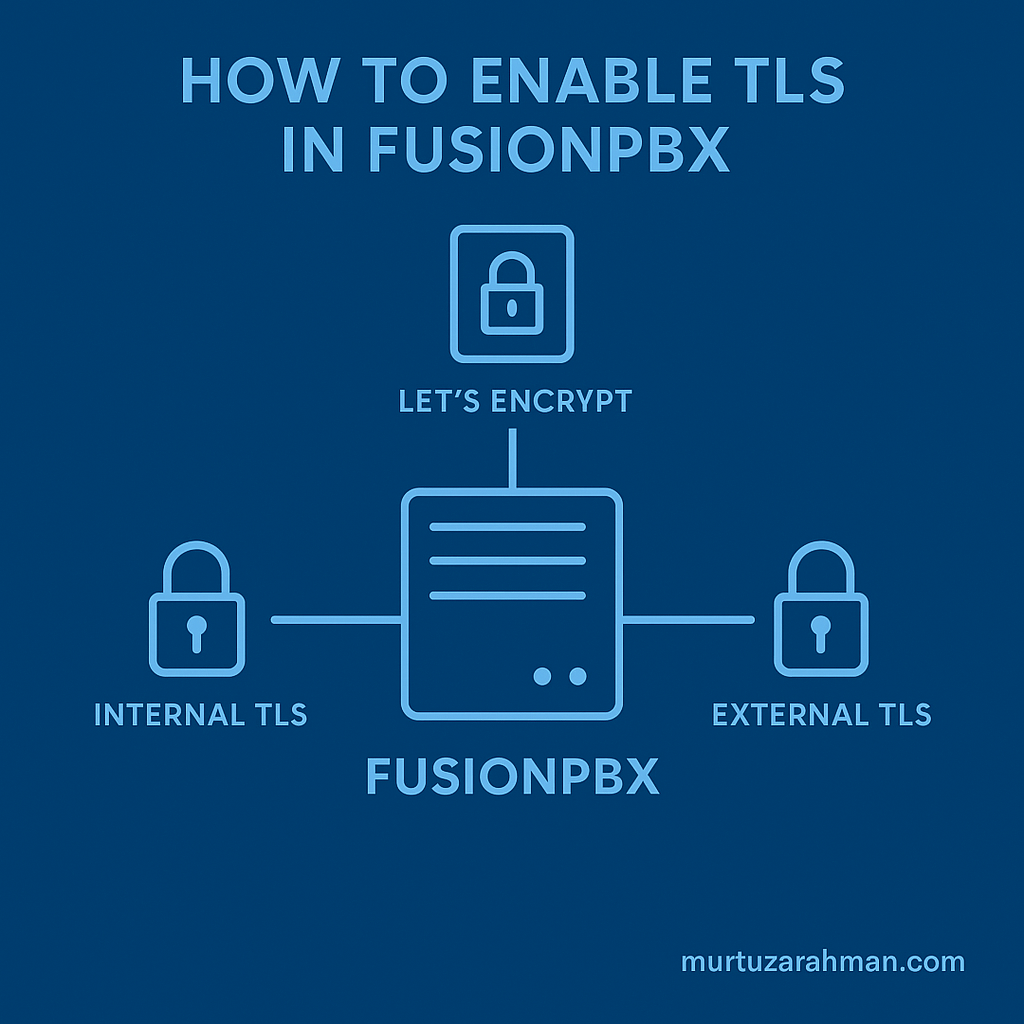
🔐 Enable TLS in FusionPBX (Updated & Corrected Guide)
This guide explains how to enable TLS for SIP (internal and external profiles) in FusionPBX using Let’s Encrypt certificates, ensuring secure SIP communication over TLS.
⚠️ Prerequisites
Before starting, ensure the following requirements are met:
- FusionPBX is installed and running
- A public domain name (example:
pbx.example.com) - Ports 80 and 443 are accessible from the internet
- Root or sudo access on the server
❗ Important: Let’s Encrypt does NOT issue certificates for IP addresses or private domains.
1️⃣ Generate TLS Certificate (Let’s Encrypt)
Navigate to the Let’s Encrypt script directory:
cd /usr/src/fusionpbx-install.sh/debian/resourcesRun the certificate generation script:
./letsencrypt.shEnter the required details when prompted:
Domain Name: pbx.example.com
Email Address: admin@example.com
Once the script completes successfully, the TLS certificates will be generated and installed for FreeSWITCH.
2️⃣ Enable TLS for SIP Profiles
Open the FusionPBX web interface and navigate to:
Advanced → VariablesUpdate the following variables:
| Variable Name | Value |
|---|---|
| external_ssl_enable | true |
| internal_ssl_enable | true |
Save the changes.
3️⃣ Reload Configuration and Restart SIP Profiles
To apply the TLS changes, go to:
Advanced → SIP Status → CommandExecute the following commands:
reloadxml
sofia profile internal restart
sofia profile external restart
4️⃣ Verify TLS Profiles
Navigate to:
Status → SIP StatusYou should now see the following SIP profiles:
internal-tlsexternal-tls
You can also verify using the command line:
sofia status5️⃣ Change TLS SIP Port (Optional)
If you want to change the TLS SIP port, navigate to:
Advanced → SIP Profiles → internal-tls / external-tlsSearch for the parameter:
tls-sip-portUpdate the port as required, then restart the SIP profiles:
sofia profile internal restart
sofia profile external restart