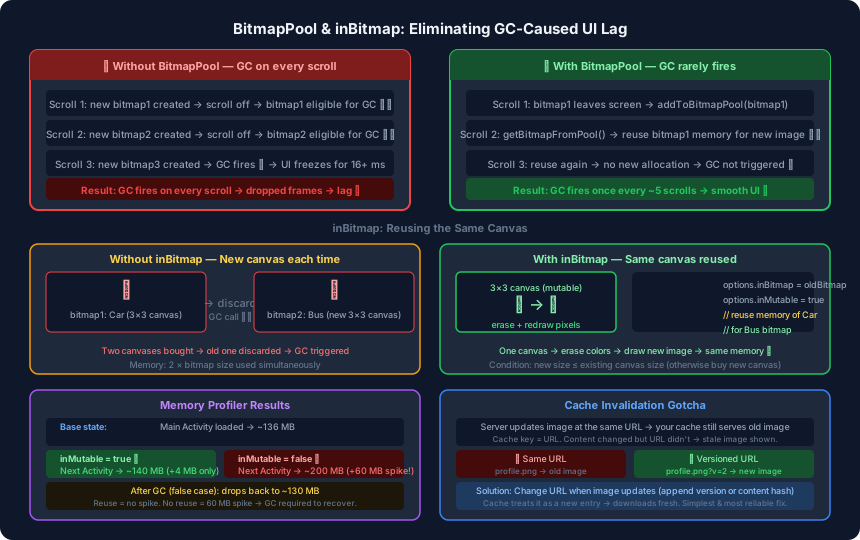
The previous posts in this series covered two of the three core problems in Android image loading — OOM from full-resolution bitmaps and slow loading from uncancelled tasks. This post covers the third: unresponsive UI and lag during RecyclerView scrolling, caused by the garbage collector firing repeatedly as bitmaps are created and thrown away on every scroll.
The Third Problem: GC Fires on Every Scroll
When scrolling a RecyclerView, each new row that enters the screen needs a bitmap. Each row that leaves the screen no longer needs its bitmap — it goes out of scope and becomes eligible for garbage collection.
Without any pooling strategy, this creates a constant cycle:
- Row scrolls in → allocate new bitmap (~10 MB)
- Row scrolls off → bitmap goes out of scope
- GC detects unreferenced bitmap → runs cleanup
- GC freezes the UI thread for the duration of the run
- Repeat on the very next scroll
As covered in Android app lag fundamentals, every GC run that touches the main thread steals time from the 16 ms frame budget. If GC takes 20 ms on a 200 MB heap, the frame is dropped and the user sees a stutter.
The more images you scroll through, the more frequently GC fires. On slower devices or with large bitmaps, this becomes visibly jarring.
The Fix: BitmapPool
The root cause is that old bitmaps are being released to GC the moment they scroll off screen. The fix is to hold onto them instead — not to display them, but to make them available for reuse.
A BitmapPool is a list of bitmaps that are no longer displayed but are kept in memory so they can be handed to the next row that needs one. Because the pool holds a reference to each bitmap, the garbage collector sees them as still in use and leaves them alone.
// Application class — shared pool
class MyApplication : Application() {
    val bitmapPool = mutableListOf<Bitmap>()

    fun addToBitmapPool(bitmap: Bitmap) {
        bitmapPool.add(bitmap)
    }

    fun getBitmapFromPool(width: Int, height: Int): Bitmap? {
        val index = bitmapPool.indexOfFirst {
            it.width >= width && it.height >= height
        }
        return if (index >= 0) bitmapPool.removeAt(index) else null
    }
}
Phase 1 — Stop GC from running on every scroll:
When a row’s ImageView scrolls off screen, call addToBitmapPool(bitmap) instead of letting the bitmap go. GC no longer fires on every scroll because all bitmaps are still referenced.
Phase 2 — Add a size limit: Holding every bitmap forever fills memory — eventually causing OOM. Just like the LRU cache discussed in the previous post, the pool needs a ceiling (e.g. 20 MB). When the pool is full and a new bitmap arrives, evict the least recently used entry. Now GC fires once every few scrolls instead of every scroll — a significant improvement.
Phase 3 — Reuse the memory:
The real power comes from actually reusing the bitmap’s memory allocation. Instead of creating a new bitmap from scratch for incoming row data, take an existing bitmap from the pool and overwrite its pixels with the new image data. This is what inBitmap enables.
inBitmap: Reusing the Canvas
Think of a bitmap as a canvas — a sheet of drawing paper with fixed dimensions. A 3×3 canvas holds a car drawing. If you want to draw a bus next, you have two choices:
- Buy a new 3×3 canvas — discard the car canvas → GC fires
- Erase the car and redraw the bus on the same canvas → no new allocation, no GC
inBitmap in BitmapFactory.Options implements exactly the second approach. You point it at an existing bitmap, and BitmapFactory.decodeFile() writes the new image data directly into that bitmap’s memory space instead of allocating fresh memory.
val options = BitmapFactory.Options().apply {
    inMutable = true   // required — bitmap must be mutable to be reused
    inBitmap = getBitmapFromPool(targetWidth, targetHeight)
        ?: Bitmap.createBitmap(targetWidth, targetHeight, Bitmap.Config.ARGB_8888)
}

val reusedBitmap = BitmapFactory.decodeFile(newImagePath, options)
When inBitmap is set and inMutable = true, the decoder writes directly into the provided bitmap’s memory. No new allocation happens. The only change is the pixel colour values — like erasing a drawing and replacing it with a new one on the same paper.
Reuse Conditions
The canvas analogy also captures the size constraint:
| Existing canvas | New image needed | Can reuse? |
|---|---|---|
| 3×3 | 3×3 | ✅ exact match |
| 3×3 | 2×2 | ✅ new image fits inside |
| 3×3 | 4×4 | ❌ new image is larger — buy a new canvas |
Reuse requires the existing bitmap’s dimensions to be greater than or equal to the new image’s dimensions. If no suitable bitmap exists in the pool, allocate a fresh one as usual.
Memory Profiler Results
The real-world impact is visible in Android Studio’s Memory Profiler. With two activities each loading a large bitmap (~60 MB):
| Scenario | Memory after loading Activity 2 | GC needed? |
|---|---|---|
inMutable = true (reuse) | ~140 MB (+4 MB) | No |
inMutable = false (no reuse) | ~200 MB (+60 MB spike) | Yes — drops back to ~130 MB after GC |
With reuse: the second bitmap writes over the first bitmap’s memory. Total memory barely moves.
Without reuse: both bitmaps exist in memory simultaneously. A 60 MB spike forces a GC run to recover the old one. That GC run is the stutter the user feels.
Over many scrolls, this difference compounds. Each scroll that would have caused a GC call now causes nothing — because the memory is being reused, not discarded.
What Glide Does
Glide manages a BitmapPool internally using the LRU strategy. Every time it finishes displaying a bitmap, it returns it to the pool rather than releasing it. When it needs to decode a new image, it checks the pool for a compatible canvas first.
You rarely interact with Glide’s pool directly, but you can configure it:
Glide.get(context).bitmapPool.put(bitmap) // manual add
val reusable = Glide.get(context).bitmapPool.get(
    width, height, Bitmap.Config.ARGB_8888
)
This is why Glide scrolls smoothly even in image-heavy lists — it is not creating and discarding bitmaps on every row. It is reusing the same pool of canvases and overwriting their pixels.
Cache Invalidation: When the Server Updates an Image
Before closing, there is one important gotcha with any caching strategy: what happens when the server changes an image but keeps the same URL?
The cache uses the URL as its lookup key. If the content at https://example.com/profile.png changes on the server, your cache has no way of knowing — it still has the old bitmap stored under that URL and will keep serving it.
Solutions
1. Versioned URL (recommended)
Append a version number or content hash to the URL whenever the image changes:
Before update: https://example.com/profile.png
After update:  https://example.com/profile.png?v=2
               https://example.com/profile.png?hash=abc123
The cache treats the new URL as a completely new entry, downloads the updated image, and stores it fresh. Old version becomes orphaned and gets evicted naturally by LRU over time.
2. Explicit cache clear
Some libraries allow forcing a cache invalidation for a specific key:
Glide.with(context)
    .load(url)
    .diskCacheStrategy(DiskCacheStrategy.NONE) // skip disk cache
    .skipMemoryCache(true)                      // skip memory cache
    .into(imageView)
This works but requires a server-side trigger to tell the client when to bypass the cache — more complexity for the same result.
Recommendation: Change the URL when the image changes. It is the simplest approach, requires no special client-side logic, and always serves the correct content.
Summary: All Three Image Loading Problems
| Problem | Root Cause | Solution |
|---|---|---|
| OOM | Full-res bitmap in RAM | Downsampling (inSampleSize) |
| Slow loading | Stale tasks + no caching | Cancel via ViewTreeObserver + two-level cache |
| Unresponsive UI | GC fires on every scroll | BitmapPool + inBitmap reuse |
Together, these three techniques are what image loading libraries implement under the hood. Glide.with(context).load(url).into(imageView) is one line of code backed by all of this machinery.