In the previous post we covered the first problem of loading images without a library — Out of Memory errors from full-resolution bitmaps. The second problem is subtler: images that load too slowly even when memory is not an issue. The cause is almost always thread starvation from uncanclled background tasks.
The Setup: RecyclerView with Remote Images
Each item in a RecyclerView needs to show a remote image. Without a library you launch a background task per item — download the file, decode it into a bitmap, set it on the ImageView. Two operations, one background thread each.
Apps typically use a fixed-size thread pool — say 5 threads — so at most 5 download/decode jobs run simultaneously. This limit exists to avoid creating hundreds of threads (each thread costs 0.5–1 MB of stack memory, as covered in a previous post).
What Goes Wrong When the User Scrolls Quickly
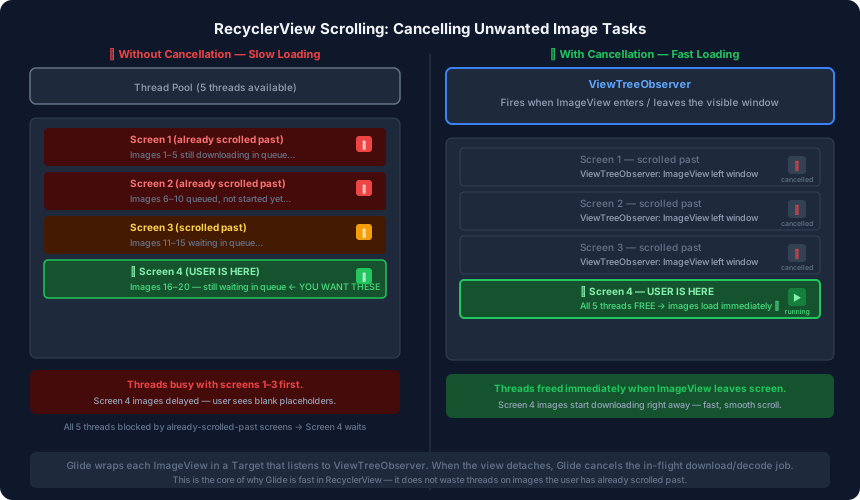
Imagine the user opens the list — Screen 1 shows images 1–5 — and immediately scrolls without waiting:
| User position | Threads |
|---|---|
| Screen 1 (1–5) | Thread pool starts downloading images 1–5 |
| Screen 2 (6–10) | 5 more jobs queued, threads still busy with 1–5 |
| Screen 3 (11–15) | 5 more jobs queued behind 6–10 |
| Screen 4 (16–20) | User stops here and waits — 5 more jobs queued last |
The thread pool has 5 slots. Images 1–5 are being processed first (they arrived first). Images 6–10 wait. Images 11–15 wait behind them. Images 16–20 — the only ones the user can actually see — sit at the back of the queue.
The result: the user stares at empty placeholders while threads are busy processing images from screens they have already left. This is slow loading — not because the network is slow, but because work is being done in the wrong priority order for items that are no longer visible.
The Fix: Cancel Tasks the Moment They Become Irrelevant
The solution is to cancel the download and decode job for an ImageView the instant that ImageView scrolls off screen. If the task is cancelled before a thread picks it up, the thread is immediately available for the item the user is actually looking at.
This requires knowing when an ImageView leaves (or enters) the visible window. Android provides exactly that through ViewTreeObserver.
ViewTreeObserver: The View Lifecycle API
Every Android View — not just ImageView, but Button, TextView, LinearLayout — has a lifecycle that mirrors the activity lifecycle. A ViewTreeObserver lets you listen to transitions in that lifecycle:
OnGlobalLayoutListener— fires when the layout pass completes and the view is measured and positioned.OnPreDrawListener— fires before each draw pass.OnWindowAttachListener— fires when the view attaches to or detaches from a window (i.e. scrolls into or out of the visible area in a RecyclerView).
The detach event is the critical one for image loading: it fires at the moment the ImageView is recycled or scrolls fully off screen.
imageView.viewTreeObserver.addOnWindowAttachListener(
    object : ViewTreeObserver.OnWindowAttachListener {
        override fun onWindowAttached() {
            // ImageView became visible — start loading
        }
        override fun onWindowDetached() {
            // ImageView left the window — cancel any in-flight task
            cancelLoadingTask(imageView)
        }
    }
)
How Glide Uses This Internally
Glide wraps every ImageView target in an internal class called Target. That Target implements ViewTreeObserver listeners so Glide knows the exact moment a view enters or leaves the visible window.
When onWindowDetached() fires, Glide calls cancel() on the associated RequestBuilder — stopping the download mid-stream if it has started, or removing the job from the queue if it has not.
The result:
- Thread pool threads are not wasted on invisible images.
- When the user pauses on Screen 4, all 5 threads are available immediately to serve images 16–20.
- Smooth, fast loading — not because the network got faster, but because threads are working on what is relevant right now.
This is why Glide’s one-liner:
Glide.with(context).load(url).into(imageView)is not just a convenience wrapper. It hooks into the Android view lifecycle to manage background work in a way that would require significant boilerplate to replicate manually.
Summary
| Scenario | What Happens |
|---|---|
| No cancellation | Thread queue fills with off-screen items; current screen waits at the back |
| With ViewTreeObserver | Off-screen tasks cancelled immediately; threads freed for visible items |
Two root causes of slow image loading in RecyclerView:
- No cancellation — threads blocked by stale work.
- No caching — same image re-downloaded every time.
The next post covers caching — the two-level strategy (RAM + disk) that turns a 7-second first load into an instant repeat load.